February 3, 2025,
0 comments
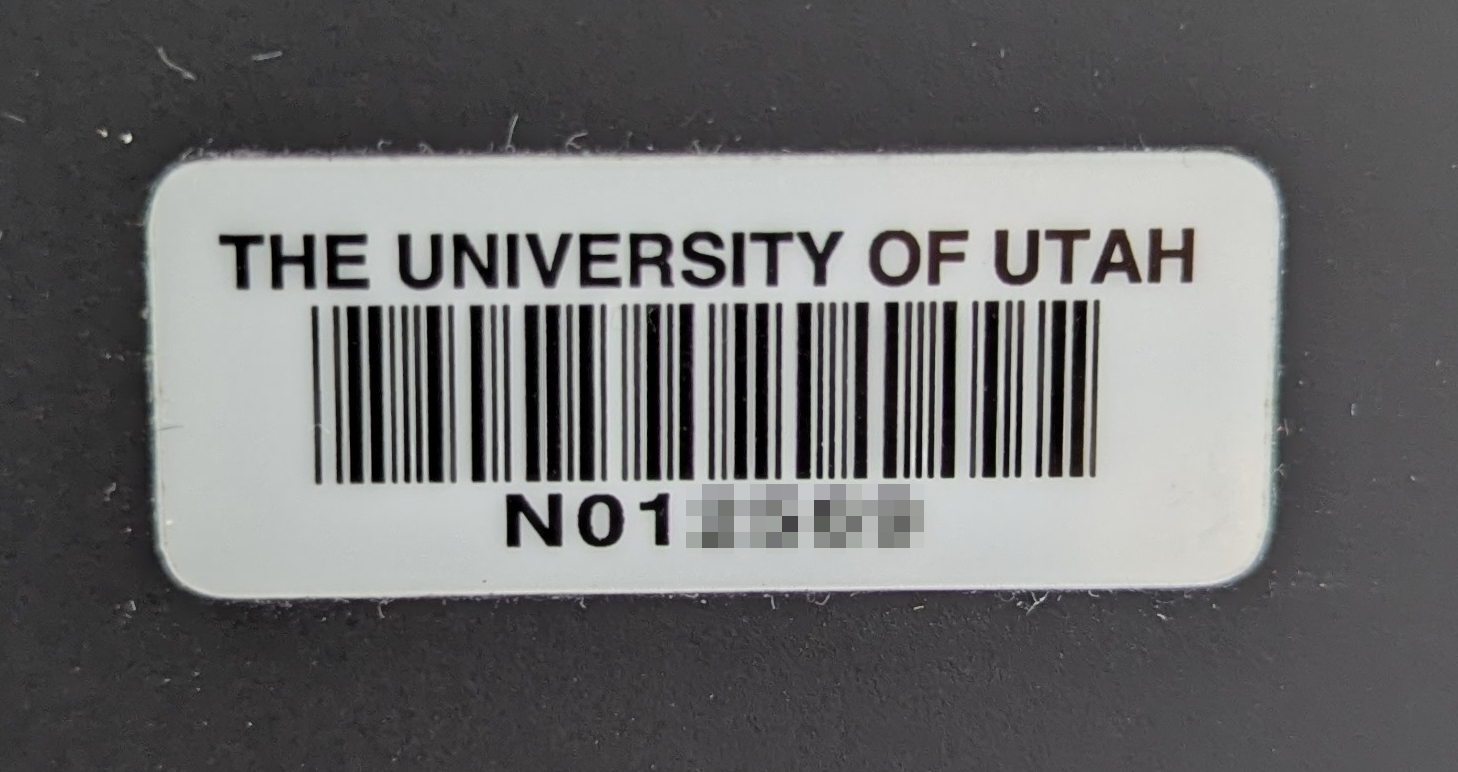
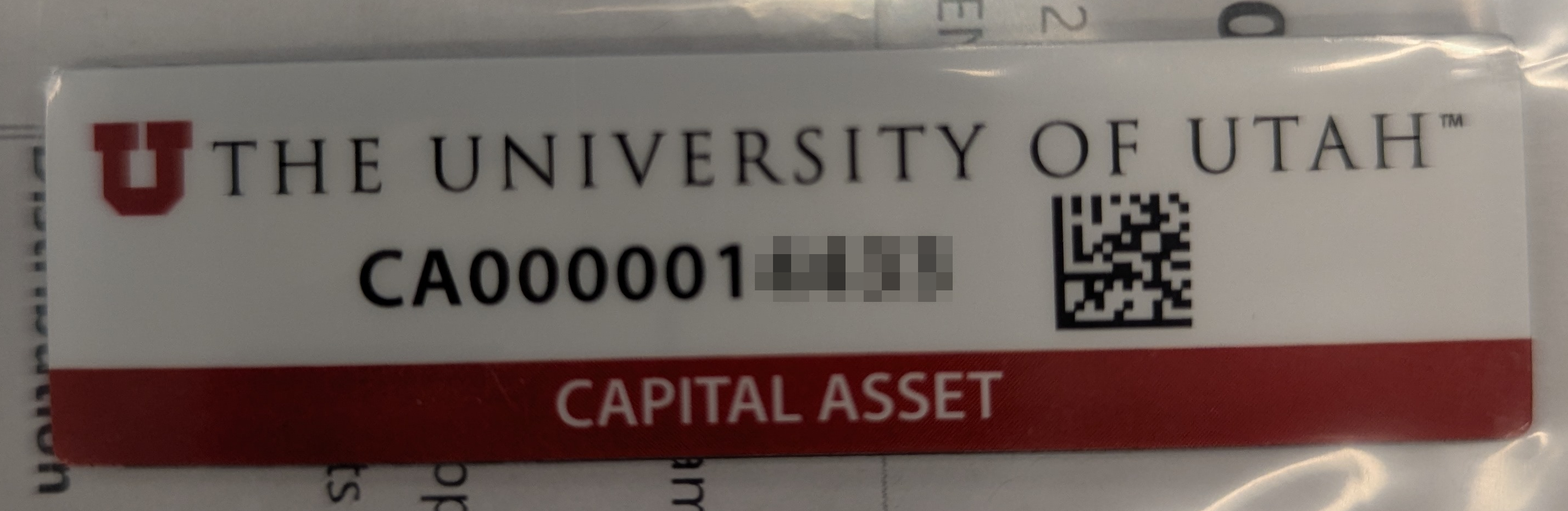
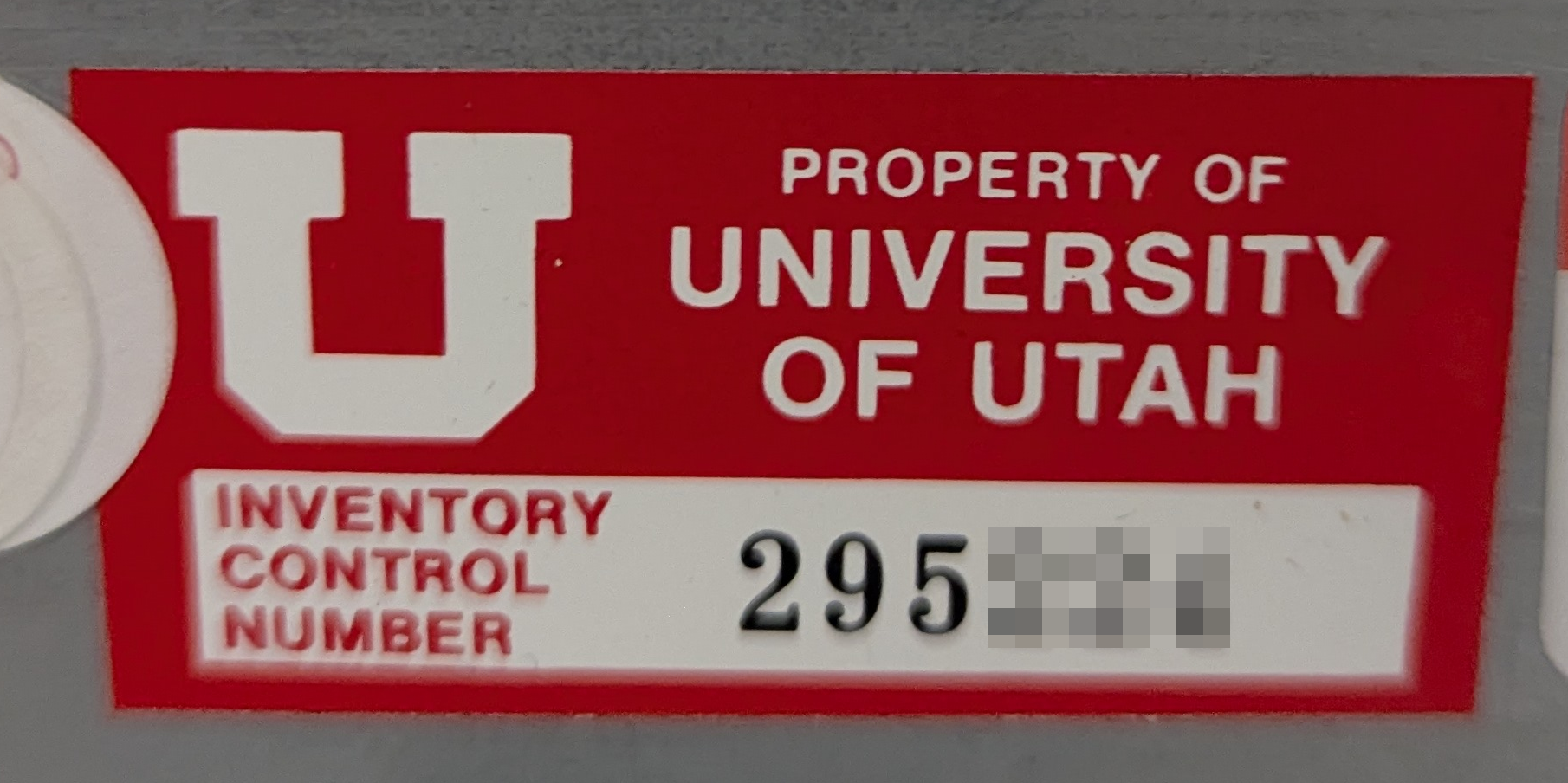
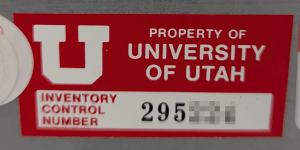
Asset tags are issued by department or the university. The are many types of asset tags (examples included below):
* Departmental
* Campus
* Non-capital
* Capital
* Etc
If your device does not have an asset tag, please contact your department’s admins to obtain one.


July 31, 2024,
0 comments
We have a reasonably sized list of available modules that we offer.
To see a list of modules currently available:
module avail
To load a module of an application:
module load application-module
(e.g. module load python)
To load a module of a specific version of an application:
module load application-module/version
(e.g. module load python/3.10)
To unload a module:
module unload application-module
(e.g. module unload python)
September 28, 2023,
0 comments
When connecting to the CADE machines, the most common error a user may receive is “Disk Quota Exceeded”. This message occurs when a user has used up the allotted space in their home directory (default currently 16GB).
To fix this, you’ll need to grab an SSH session to a lab machine and delete some data that way.
Using Windows Powershell or a Mac Terminal, run “ssh username@lab1-1.eng.utah.edu”
Then run “du -xhad1 | sort -hr | head -n 20”
This will summarize your disk usage with depth=1. This will take a few minutes. Be patient!
For example:
[user@lab1-1 ~]$ du -xhad1 ~ | sort -hr | head -n 10
16.0G /home/user
13.4G /home/user/Downloads
1014M /home/user/cs4200
468M /home/user/eclipse-workspace
190M /home/user/.mozilla
162M /home/user/.eclipse
128M /home/user/.nx
82M /home/user/PycharmProjects
44M /home/user/Videos
38M /home/user/Pictures
Here we can see that we’re using 16.0GB of space total. That’s our entire quota. Of the 16.0G, 13.4G is from the Downloads directory.
Let’s see what’s using the space in our Downloads directory.
[user@lab1-1 ~]$ du -xhad1 ~/Downloads | sort -hr | head -n 10
11G /home/user/Downloads/dataset.zip
2.4G /home/user/Downloads/DogVideo.mp4
12M /home/user/Downloads/Never Gonna Give You Up.mp3
Ah! that dataset we downloaded last semester is still in our Downloads directory. Let’s delete it.
[user@lab1-1 ~]$ rm /home/user/Downloads/dataset.zip
If you need to delete a directory (and all contents within), add the recursive and force options.
[user@lab1-1 ~]$ rm -rf /home/user/cs4200
You may also need to purge your NoMachine cache, as it may have gotten corrupted if NoMachine ran out of space while running.
[user@lab1-1 ~]$ rm -rf /home/user/.nx
We no longer use NoMachine for the CADE Lab.
July 17, 2019,
0 comments
By default, each user is granted 16GB of storage in their home directory, but
we don’t recommend using that storage for temporary files.
/tmp: RAM backed storage
Each CADE machine has 32GB of VERY fast storage at /tmp intended for temporary files. This storage is local to each machine and is lost if the machine is powered off.
/var/tmp: SSD backed storage
If 32GB is not enough, you can use /var/tmp, which has ~200GB of SSD-backed storage. This storage is local to each machine and is retained across reboots.
/scratch: NFS backed storage
If you need more than 200GB, you can use /scratch, which is 16TB, but the speed will be slightly slower. This storage is shared across on all machines. We ask that you create a folder named with your username to keep it organized.
All files in /scratch are deleted on the first day of every semester.
Scratch is not backed up or snapshotted, if you need medium or long term storage, work with you department to acquire what you need.
January 5, 2017,
0 comments
To create a CADE account, follow the steps at https://usertools.eng.utah.edu
You do not need to register your UCard for access to the labs, but a physical UCard is currently required.
The username and password for this account is the same for ALL Price College of Engineering computer lab computers (Windows, Linux, and macOS labs).
If you forget your username and/or password, or wish to reset it, you can do so from the same User Tools Link. This link can also be found under Quick Links, PCE User Tools – Password Reset.
October 9, 2015,
0 comments
Once logged in to a linux machine, open a Terminal and you’ll issue a few commands. By default, you start in your home directory (/home/username) and it may appear with a prompt to the left of the cursor indicating that (a user’s ‘home’ may be represented by the ‘~’ char).
If you don’t have a directory to share, create one with something like:
[warthogs@lab1-23 ~]$ mkdir TeamSamba
The directory inherits the default permissions, in this case rwx (read-write-execute for the owner, your username; read-execute for group; read-execute for everyone/all users:
[warthogs@lab1-23 ~]$ ls -ld TeamSamba/
drwxr-xr-x 2 warthogs csugrad 4096 Oct 9 12:47 TeamSamba/
To verify the groupname for setting the directory permissions, find out which groups you’re a member of:
[warthogs@lab1-23 ~]$ groups
csugrad telerobotics mediashare src cs6090 cei manu
And assign one to the directory:
[warthogs@lab1-23 ~]$ chgrp telerobotics TeamSamba
[warthogs@lab1-23 ~]$ ls -ld TeamSamba/
drwxr-xr-x 2 warthogs telerobotics 4096 Oct 9 12:47 TeamSamba/
Finally, set the permissions so the group can write files, but no other users can see in the directory:
[warthogs@lab1-23 ~]$ chmod 2770 TeamSamba/
[warthogs@lab1-23 ~]$ ls -ld TeamSamba/
drwxrws— 2 warthogs telerobotics 4096 Oct 9 12:47 TeamSamba/
See ‘man chmod’ or ‘man chgrp’ for syntax details and more information.
August 28, 2014,
0 comments
‘handin’ is a utility for turning in assignments to a course directory (/home/’course#’/handin/’Assignment’/username). Once turned in, the course professor/instructor or TAs can access the files, but neither you nor other students can see them. Running ‘handin’ will replace same-named files with each successive run. The online webhandin https://webhandin.eng.utah.edu/ form has been discontinued, and is no longer accessible.
Handin is accessed via the command line on the Linux machines. Once a file has been submitted it will be received with the same name. Submitted files can be overwritten by resubmitting, but not retracted. — Check your assignment instructions/handout for the [Assignment] to use when submitting.
Command/Examples:
handin [class#] [Assignment] [/path/to/local-file]
$ handin CS0000 Assign01 ~/Documents/myAssignment.txt
October 2, 2013,
0 comments
Perhaps you have entered your password incorrectly too many times logging in to one of our Windows machines or Active Directory controlled services (Lab, mounting network shares, etc.) or are getting the following error:
“The referenced account is currently locked out and may not be logged on to.”
We can unlock your account but it’s only secure if you come ask us in person. It’s difficult to verify identity through e-mail, phone, etc. You may, however, remove the lock by resetting your password via the PCE User Tools page available in the right column of our home page.
If this does not work for your situation, stop in to see the Help Desk in WEB 210 or 224 or e-mail support@coe.utah.edu.
September 4, 2013,
0 comments
Lost something? Hoping it was turned in?
There are Lost & Found boxes near the Help Desks in CADE and the Engman Labs. We will no longer be receiving items, but suggesting finders place all items in the marked boxes/tables in front of the offices.
If it didn’t get turned in to us, you might check with the PCE Dean’s Office lost and found (WEB 1650) in case the custodians found it and turned it in there.
Otherwise, send an e-mail to support@coe.utah.edu and let us know what was lost and we’ll let you know if we’ve seen it.
February 19, 2013,
0 comments
The student computing labs we support are generally open 24 hours a day, 365 days a year.
Some labs, or portions thereof, are reserved for classes and should not be used by those not in the specific course during that time.
On occasion, we experience outages to network, server equipment, or even power. In the unlikely event, we make every effort to restore service as quickly as possible for all users, and will post status as soon as possible. We also reserve the right to withhold access to specific labs or services due to planned outages for upgrades, maintenance, and the like.
Be sure to subscribe to announcement method that works best for you.