August 22, 2025,
0 comments
Most likely, your machine isn’t recognizing the username of your CADE account and instead is grabbing the username of your local machine (e.g. C:\Users\Bob on Windows, /Users/Bob on macOS, /home/bob on Linux/BSD instead of a lab machine /home/u8675309).
To test this, SSH into a lab machine that you have never connected to before. In VS Code, click on the button that has a greater than and less than symbol next to each other (it should show ‘Open a remote window’ above the button when highlighted) on the bottom left and this should open a menu on the top. Click on Connect to host, then type in ‘yourcadeusername@labX-X.eng.utah.edu’ (e.g. u8675309@lab2-1.eng.utah.edu).
It will then warn you that “lab2-1.eng.utah.edu has fingerprint SHA256:fingerprintkey”. Click or type ‘Continue’. It should ask for your CADE password and as long as you’re on campus wifi it shouldn’t ask for a verification code. It may take a minute to connect as VS Code has to download the VS Code server.
August 13, 2025,
0 comments
Running Windows-only software on macOS
Some courses may require software that is only available for Microsoft Windows operating systems.
For those with an Apple macOS device, there are a handful of options, depending on the software’s requirements, your use case and personal preference.
For example, support for GPU emulation/virtualization on Windows and therefore 3D acceleration (e.g. OpenGL and DirectX) are not available with all the options listed below. Check the fine print.
Most common would be to create a Windows virtual machine, providing a full Windows GUI environment with its own partition. Another popular option is a Windows emulator for running just an app or two.
If you don’t have a MS Windows license, and depending on the option chosen below, check out our instructions on getting it free.
OpenSource/Free:
•VMware Fusion: Run Windows, Linux and other virtual machines with VMware Fusion for Mac, the industry standard desktop hypervisor. See also: https://www.mikeroysoft.com/post/download-fusion-ws/
•UTM: a full featured system emulator and virtual machine host for iOS and macOS. It is based off of QEMU. In short, it allows you to run Windows, Linux, and more on your Mac, iPhone, and iPad.
•VirtualBox: a general-purpose full virtualization software for x86_64 hardware targeted at laptop, desktop, server and embedded use.
•Wine: a compatibility layer capable of running Windows applications on several POSIX-compliant operating systems, such as Linux, macOS, & BSD. Instead of simulating internal Windows logic like a virtual machine or emulator, Wine translates Windows API calls into POSIX calls on-the-fly, eliminating the performance and memory penalties of other methods and allowing you to cleanly integrate Windows applications into your desktop.
For Purchase:
•Parallels: Maximize your Mac’s potential by running Windows and Windows applications on a virtual machine. Access over 200,000 apps to work, study and play effortlessly. Authorized by Microsoft.
•CrossOver: the easiest way to run many Microsoft applications on your Mac without a clunky Windows emulator. It’s not an emulator. It does the work of translating Windows commands into Mac commands so that you can run Windows software as if it were designed native to Mac. Works with all kinds of software – productivity software, utility programs, and games – all with one application.
February 3, 2025,
0 comments
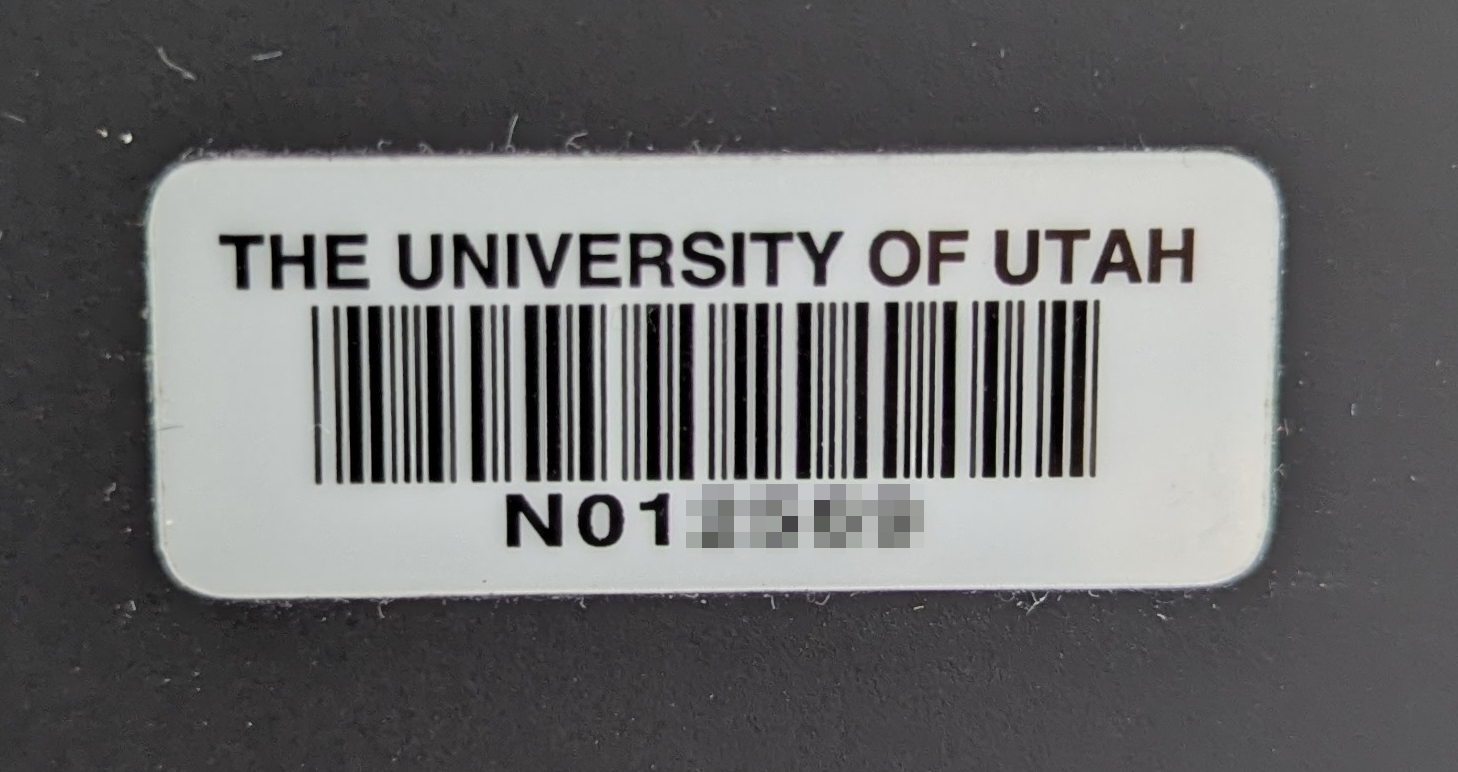
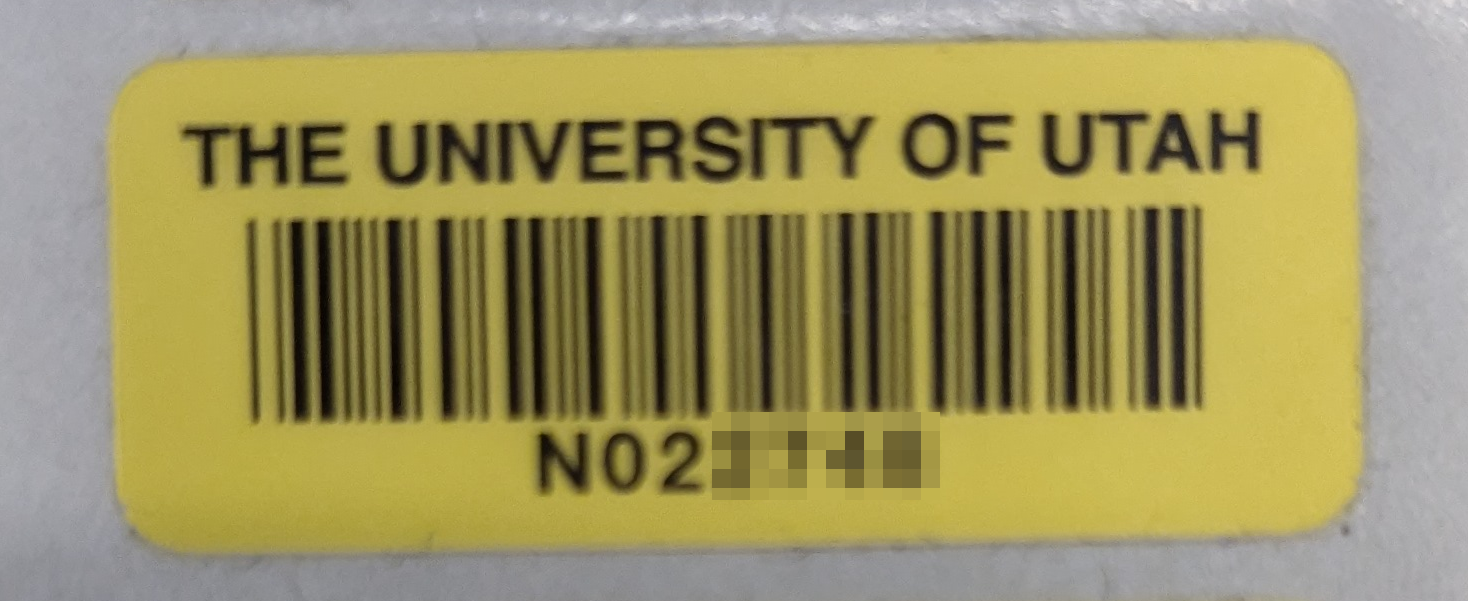
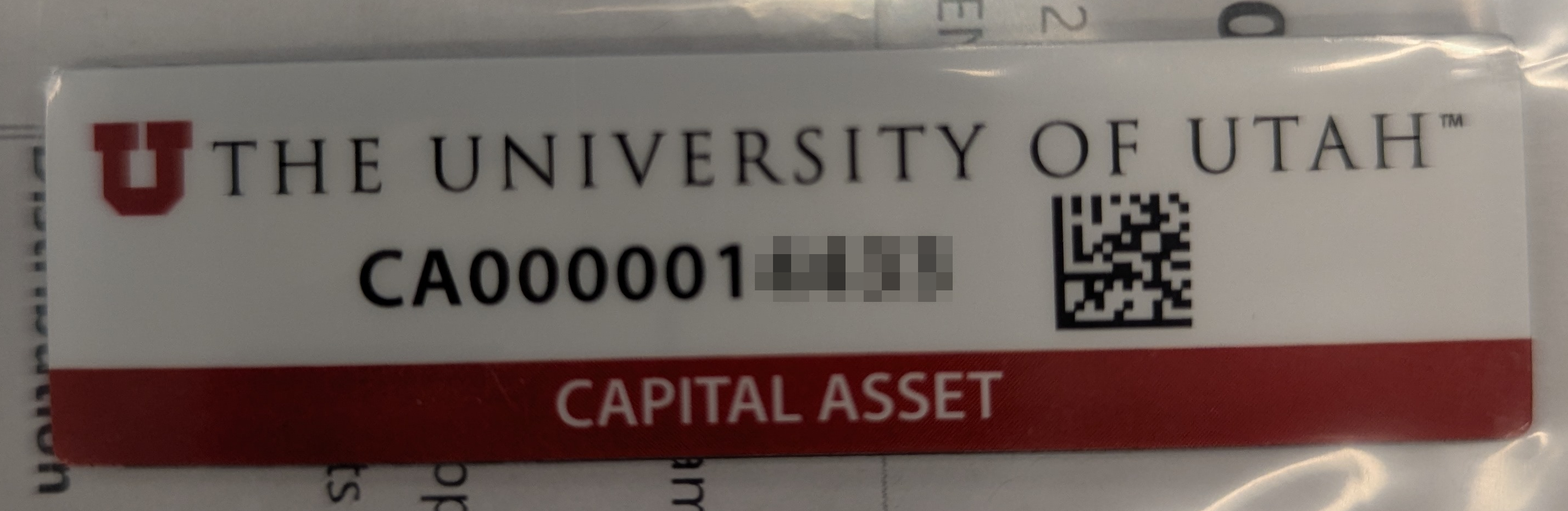
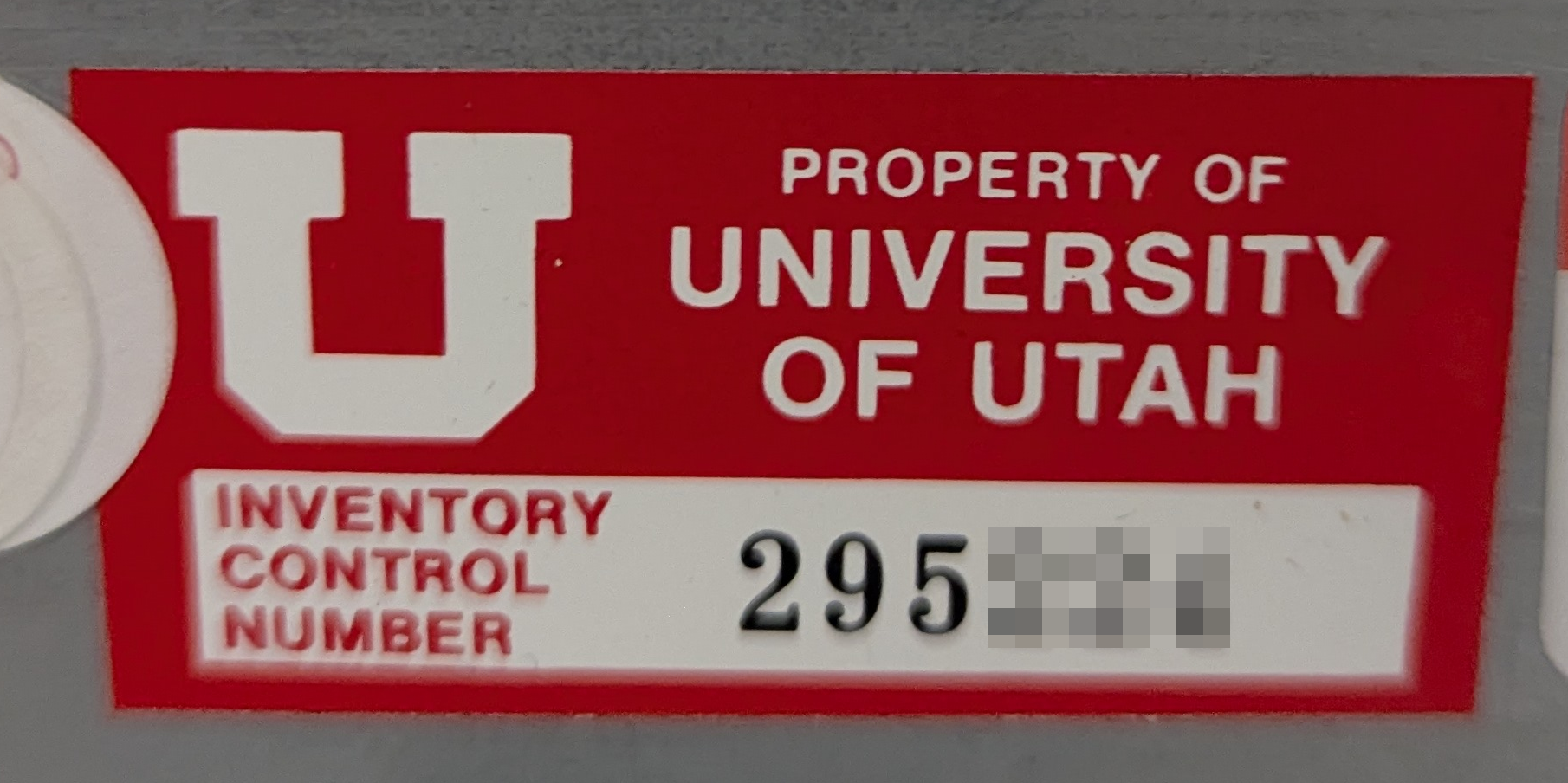
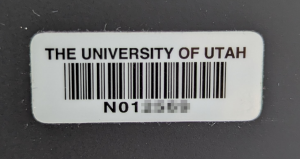
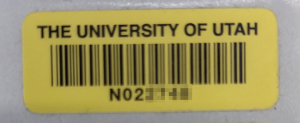
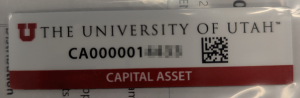
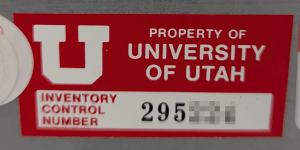
Asset tags are issued by department or the university. The are many types of asset tags (examples included below):
* Departmental
* Campus
* Non-capital
* Capital
* Etc
If your device does not have an asset tag, please contact your department’s admins to obtain one.
July 31, 2024,
0 comments
We have a reasonably sized list of available modules that we offer.
To see a list of modules currently available:
module avail
To load a module of an application:
module load application-module
(e.g. module load python)
To load a module of a specific version of an application:
module load application-module/version
(e.g. module load python/3.10)
To unload a module:
module unload application-module
(e.g. module unload python)
September 28, 2023,
0 comments
When connecting to the CADE machines, the most common error a user may receive is “Disk Quota Exceeded”. This message occurs when a user has used up the allotted space in their home directory (default currently 16GB).
To fix this, you’ll need to grab an SSH session to a lab machine and delete some data that way.
Using Windows Powershell or a Mac Terminal, run “ssh username@lab1-1.eng.utah.edu”
Then run “du -xhad1 | sort -hr | head -n 20”
This will summarize your disk usage with depth=1. This will take a few minutes. Be patient!
For example:
[user@lab1-1 ~]$ du -xhad1 ~ | sort -hr | head -n 10
16.0G /home/user
13.4G /home/user/Downloads
1014M /home/user/cs4200
468M /home/user/eclipse-workspace
190M /home/user/.mozilla
162M /home/user/.eclipse
128M /home/user/.nx
82M /home/user/PycharmProjects
44M /home/user/Videos
38M /home/user/Pictures
Here we can see that we’re using 16.0GB of space total. That’s our entire quota. Of the 16.0G, 13.4G is from the Downloads directory.
Let’s see what’s using the space in our Downloads directory.
[user@lab1-1 ~]$ du -xhad1 ~/Downloads | sort -hr | head -n 10
11G /home/user/Downloads/dataset.zip
2.4G /home/user/Downloads/DogVideo.mp4
12M /home/user/Downloads/Never Gonna Give You Up.mp3
Ah! that dataset we downloaded last semester is still in our Downloads directory. Let’s delete it.
[user@lab1-1 ~]$ rm /home/user/Downloads/dataset.zip
If you need to delete a directory (and all contents within), add the recursive and force options.
[user@lab1-1 ~]$ rm -rf /home/user/cs4200
You may also need to purge your NoMachine cache, as it may have gotten corrupted if NoMachine ran out of space while running.
[user@lab1-1 ~]$ rm -rf /home/user/.nx
We no longer use NoMachine for the CADE Lab.
July 17, 2019,
0 comments
By default, each user is granted 16GB of storage in their home directory, but
we don’t recommend using that storage for temporary files.
/tmp: RAM backed storage
Each CADE machine has 32GB of VERY fast storage at /tmp intended for temporary files. This storage is local to each machine and is lost if the machine is powered off.
/var/tmp: SSD backed storage
If 32GB is not enough, you can use /var/tmp, which has ~200GB of SSD-backed storage. This storage is local to each machine and is retained across reboots.
/scratch: NFS backed storage
If you need more than 200GB, you can use /scratch, which is 16TB, but the speed will be slightly slower. This storage is shared across on all machines. We ask that you create a folder named with your username to keep it organized.
All files in /scratch are deleted on the first day of every semester.
Scratch is not backed up or snapshotted, if you need medium or long term storage, work with you department to acquire what you need.
March 20, 2019,
0 comments
Microsoft office suite is no longer provided to all students after summer of 2024. However office 365 online in available by clicking the ‘login’ button Here.
For further licensing information, or for to submit an office-suite request with the Office of Software Licensing, go Here
March 20, 2019,
0 comments
The license keys provided on the Azure Dev Tools for Teaching portal are controlled by Microsoft, not by the CADE Lab. We have no ability to issue new keys through the Portal. If you need an additional key for a specific software package, visit the Engman Lab Help Desk (WEB L210b) and we may be able to provide one for you in person.
March 20, 2019,
0 comments
The free Microsoft software is accessed by creating an account associated with your u#######@umail.utah.edu email address on the Azure Dev Tools for Teaching portal, and then signing in to the portal with that account. From the portal you can download installers or ISO images for the various software packages and obtain license keys if they are required by the specific package.
Instructions for accessing the Azure Dev Tools for Teaching portal can be found at http://cade.utah.edu/wp-content/uploads/2025/08/Azure-Dev-Tools-for-Teaching.pdf.
March 20, 2019,
0 comments
Most Microsoft software other than Microsoft Office is available to students for free through Campus’s Azure Dev Tools for Teaching subscription. This includes various Windows operating systems, Visual Studio, Visio, Project, and many more.